
 March 18, 2026, 3:02 p.m.
Activating the Active Directory Recycle Bin
In this article, we will look at the Active Directory Recycle Bin Feature in Windows Server 2012 R2. If a system administrator working in an Active Directory environment accidentally deletes any object in Active Directory, the effects of such mistakes can lead to critical problems ranging from a lost end-user account to a complete halt in system operations.
What is the Active Directory Recycle Bin Feature
In Windows Server 2008 R2, a feature called the Active Directory Recycle Bin was introduced to provide system administrators with a way to recover accidentally deleted active directory objects. However, using the AD Recycle Bin in Windows Server 2008 R2 environments was difficult for some administrators because enabling and using this feature could only be performed from the command line using the Ldp.exe utility or Windows PowerShell cmdlets.
In Windows Server 2012 R2, this task has been simplified and made it easier for administrators to recover deleted objects. Now you can use the GUI-based Active Directory Administrative Center to both enable the AD Recycle Bin and recover deleted objects.
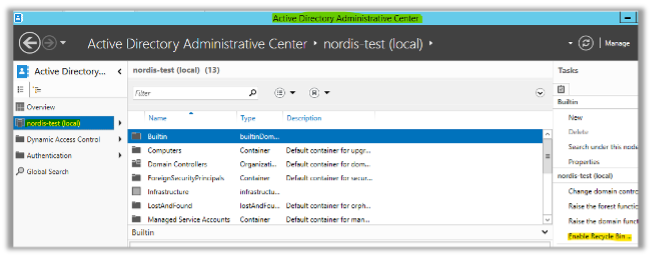
Server Manager > Tools > Active Directory Administrative Center. Select the domain from the left side and click Enable Recycle Bin on the right side.
Note: To use this feature, the Domain Function Level must be 2012 R2 or higher.
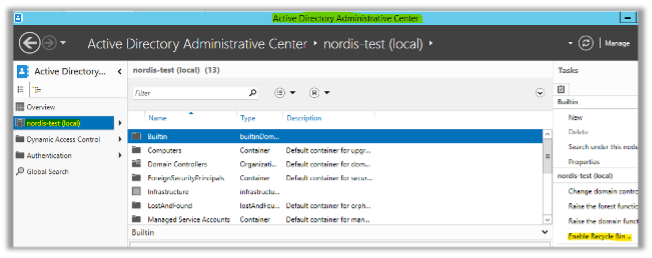
If you cannot enable this feature from the Administrative Center, you can use the following command with PowerShell:
Enable-ADOptionalFeature 'Recycle Bin Feature' -Scope ForestOrConfigurationSet
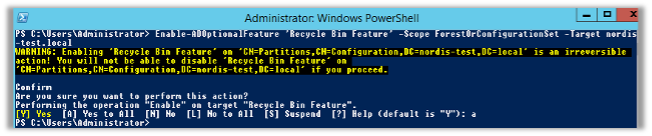
Then to verify:
Get-ADOptionalFeature “Recycle Bin Feature” | select-object name, EnabledScopes

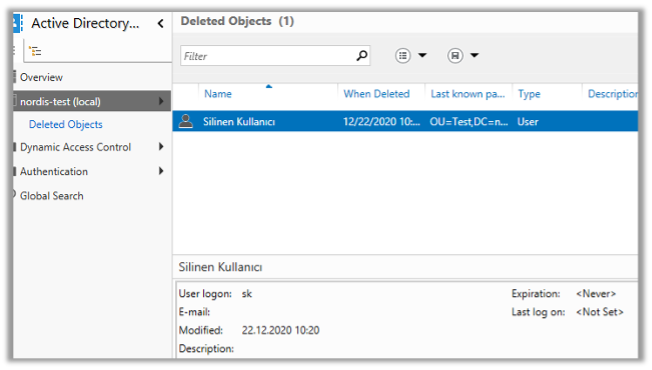
Enable Recycle Bin should turn gray in the Administrative Center. From this point on, all deleted items will go under Administrative Center \





Similar Posts