
 March 18, 2026, 3:02 p.m.
Creating a Password Policy
The security of critical accounts (such as service accounts) in organizations is important. It is recommended to collect these accounts under a security group and apply a specially created password policy to this group.
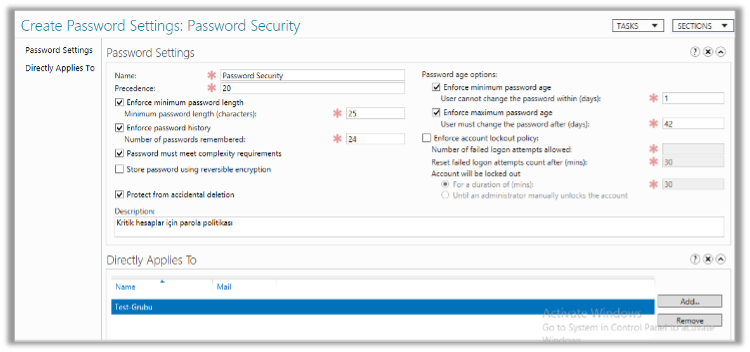
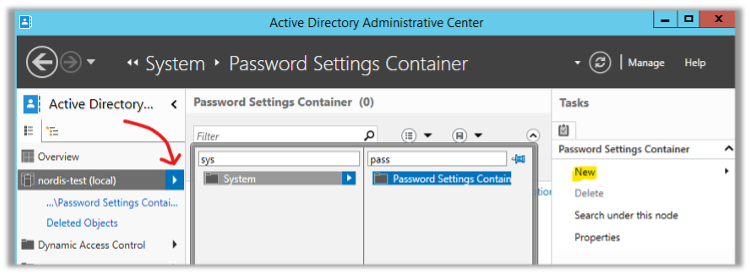
To do this, open Active Directory Administrative Center and select the domain from the left side to navigate to System > Password Settings Container. Then, make the definitions from New > Password Settings on the right side.
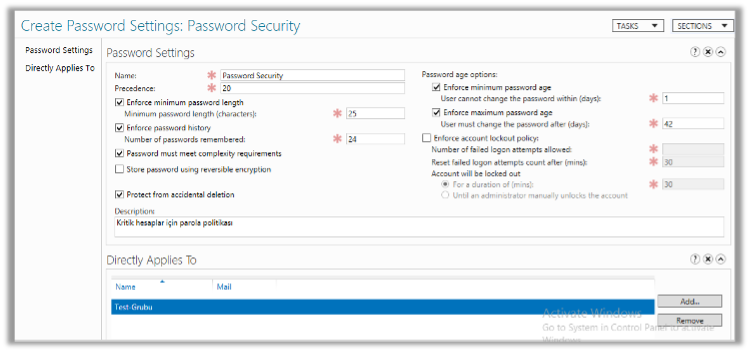
The recommended settings are as follows. After the settings are configured, it is sufficient to add the group from the Directly Applies To section.
If you want to apply this policy at the domain level for every user, you can create a new GPO and assign it to users.
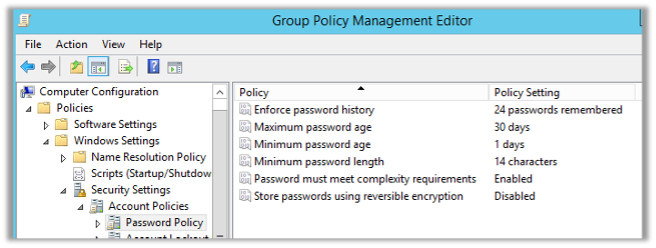
Note: In the policy you prepare through GPO, the minimum character count cannot exceed 14. If you want it to be more than 14 characters, this change needs to be made from the Administrative Center as in the first example.
After assigning this GPO to users, if you want to force them to change their passwords at the next login, you can send it to the selected OU with the following command.
Get-ADUser -Filter * -SearchBase “OU=OU NAME,DC=DOMAIN,DC=COM/LOCAL” | Set-ADUser -CannotChangePassword:$false -PasswordNeverExpires:$false -ChangePasswordAtLogon:$true
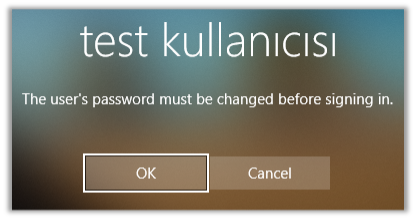
When you enter this command, the “User must change password at next logon” checkbox will be marked for users who are members of the OU you defined, and they will need to change their passwords at the next login request.
Passwords of service accounts (such as SQL Agent) are generally not changed after installation. This can be checked with the following command from PowerShell:
net user/do
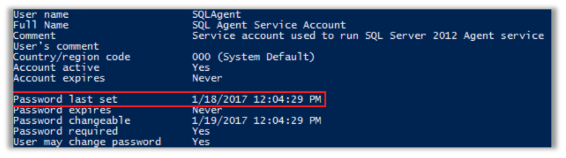
Passwords of service accounts that have not been changed for a long time can be cracked by an attacker. It is recommended to change the passwords of these service accounts every 6 months or once a year.





Similar Posts