

 March 18, 2026, 2:33 p.m.
"Hey, I need admin privileges on this computer, what was the local admin password?"
"654321… but don't tell anyone." 😅
Does this sound familiar? In many organizations, the same local administrator password is used across all computers. But what happens if someone learns this password?
- Potential access to all domain-joined computers
- Lateral movement opportunity for attackers
- Serious non-compliance risk in ISO 27001, TISAX and similar audits
This is exactly where Microsoft's LAPS (Local Administrator Password Solution) comes into play. Although it may seem like a small tool, it creates a critical layer in enterprise security architecture.
What is LAPS?
LAPS is a free Active Directory (AD) extension developed by Microsoft. It automatically rotates the local administrator password of each domain-joined Windows machine, assigns a unique and complex password, and stores it encrypted in Active Directory.
With LAPS:
- ✔ A unique administrator password is created for each computer
- ✔ Passwords are stored securely in Active Directory
- ✔ They are automatically changed at defined intervals
- ✔ Authorized IT personnel can view them through AD when needed
Why Should You Use LAPS?
- Eliminates shared admin password risk: Since each machine has a different password, a single compromise doesn't threaten the entire network.
- Makes lateral movement attacks difficult: Lateral movement, the most commonly used technique by ransomware operators, is prevented.
- Provides controlled access for helpdesk: Who viewed which machine's password is logged, increasing accountability.
- Ends the chaos of storing passwords in Excel: The era of "Machine list + passwords.xlsx" is over.
- Strengthens audit compliance: Provides strong evidence of control for ISO 27001, TISAX, GDPR and similar frameworks.
Windows LAPS vs. Legacy LAPS: What's the Difference?
In 2023, Microsoft integrated Windows LAPS natively into the operating system starting with Windows 11 and Windows Server 2022 and later. While the old "Legacy LAPS" required a separate MSI package, Windows LAPS also offers these additional features:
- Azure Active Directory (Entra ID) and hybrid environment support
- Password history (storing last N passwords)
- Emergency access password
- Password encryption strengthened with AES-256
- Microsoft Intune integration
LAPS Installation Guide (Step by Step)
Requirements
- Active Directory Domain Services (AD DS)
- Domain Controller: Windows Server 2012 R2 and above
- Managed clients: Windows 10/11 or Windows Server 2012 R2+
- Schema Admin and Domain Admin privileges
Step 1 — Update Active Directory Schema
LAPS adds new attributes to the Active Directory schema. Run this step on the Domain Controller with Schema Admin privileges.
Windows LAPS (built-in, Windows Server 2022 / Win11):
Update-LapsADSchema
Legacy LAPS (installed with MSI package):
- Install LAPS.x64.msi → select Management Tools
Import-Module AdmPwd.PSUpdate-AdmPwdADSchema
Step 2 — Grant Password Write Permission to Computer Accounts
Each machine must be able to write its own password to AD. Assign this permission at the OU level:
- Windows LAPS:
Set-LapsADComputerSelfPermission -Identity "OU=Workstations,DC=acme,DC=com" - Legacy LAPS:
Set-AdmPwdComputerSelfPermission -OrgUnit "OU=Workstations,DC=acme,DC=com"
Step 3 — Grant Read Permission to Administrators (Principle of Least Privilege)
Determine who can read passwords. Grant access only to groups that need it, not the entire IT team:
- Windows LAPS:
Set-LapsADReadPasswordPermission -Identity "OU=Workstations,..." -AllowedPrincipals "ACME\L2-Support" - Legacy LAPS:
Set-AdmPwdReadPasswordPermission -OrgUnit "OU=..." -AllowedPrincipals "ACME\L2-Support"
Step 4 — Configure with Group Policy
LAPS policies are deployed through GPO (Group Policy Object). Basic policy settings:
- Password Complexity: Uppercase + lowercase + numbers + special characters
- Password Length: Minimum 15 characters (recommended: 20+)
- Password Age: 30 days (adjust according to your compliance requirements)
- Target Account: "Administrator" (default) or a different local account
GPO path: Computer Configuration → Administrative Templates → LAPS (built-in for Windows LAPS; requires ADMX template for Legacy)
Step 5 — Client Installation (Legacy LAPS Only)
No client installation is required for Windows LAPS — it's built into the OS. For Legacy LAPS, LAPS.x64.msi must be deployed on each managed machine:
- Software deployment with SCCM / MECM
- Application Deployment with Microsoft Intune
- GPO's "Software Installation" feature
Step 6 — Test and Verify
- Run
gpupdate /forceon the client machine - The password should be written to AD in the next policy cycle
- Password read test:
Get-LapsADPassword -Identity "PC01" -AsPlainText
How to View the Password?
- PowerShell:
Get-LapsADPassword -Identity "COMPUTER-NAME" -AsPlainText - LAPS UI (Legacy): Graphical management tool
- Active Directory Users and Computers: Computer object → Attributes
- Microsoft Intune / Endpoint Manager: Portal for Azure AD joined devices
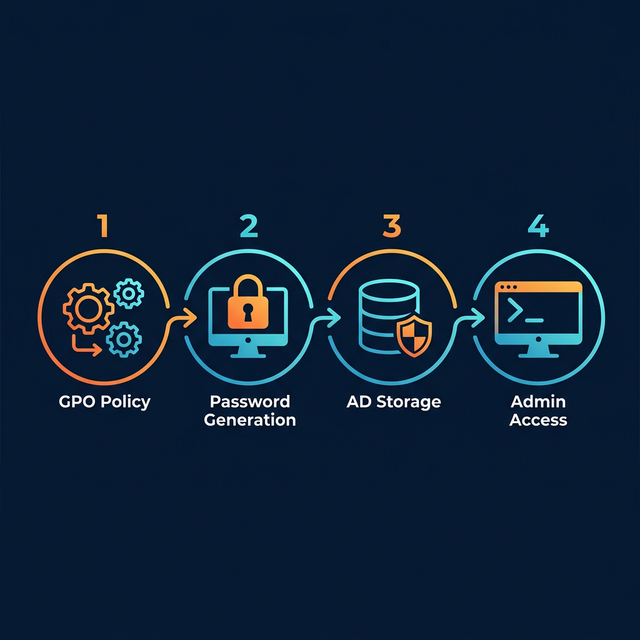
Figure 1: LAPS workflow - GPO policy, unique password generation, AD storage, authorized access
LAPS and ISO 27001 Compliance
LAPS directly addresses multiple controls in the ISO 27001:2013 standard. Therefore, it can be presented as concrete technical control evidence in ISMS (Information Security Management System) certification processes:
| ISO 27001 Control | Title | LAPS Contribution |
|---|---|---|
| A.9.4.1 | Information Access Restriction | Only authorized users can access local admin admin passwords |
| A.9.4.3 | Password Management System | Automated, complex and unique password management |
| A.12.4.1 | Event Logging | Logging who accessed which machine password and when |
| A.12.6.1 | Management of Technical Vulnerabilities | Closing shared password vulnerability which is a critical attack vector |
Why Has LAPS Become Even More Critical Today?
There is a concrete reason behind why ransomware groups, specifically:over 80% of ransomware attacks involve lateral movement, and the vast majority of these attacks exploit static local administrator passwords.
Nordis Global provides institutional support for LAPS installation, Active Directory security assessment, ISO 27001 / TISAX compliance consulting and Privileged Access Management solutions. Contact us.




Similar Posts